DESK-XZU-L/pdf
History[edit | edit source]
| History | |||
|---|---|---|---|
| Version | Issue Date | Notes | Refers to |
| June 2026 | First DESK-XZU-L release | ||
| ONDA | |||
| 2.2.0 | August 2026 | DESK-XZU-L 2.2.0 release | |
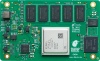 ONDA ONDA
| |||
General Information[edit | edit source]
Release Notes[edit | edit source]
DAVE Embedded Systems adds to the latest Vivado/Petalinux BSP from Xilinx the customization required to support the SOC platform. For this reason most of the documentation provided by Xilinx remains valid for the DESK development kit.
However, some customization is required, in particular at bootloader and linux kernel levels.
The following table reports the DESK releases information.
| DESK version | |
|---|---|
| Release number | 2.2.0 |
| Release type | Minor |
| Status | Released |
| Release date | Aug 2026 |
| Release notes | Ver 2.2.0 |
| Product support | ONDA |
| Drivers |
SPI NOR Flash (boot) SD |
| Vivado version | 2024.2 |
| Petalinux version | 2024.2 |
| U-Boot version | U-boot Version v2024.01 |
| Linux version | Linux Kernel rebase version 6.6.40 |
| Build system | Yocto Scarthgap (5.0.10) |
(*): ask Sales department for a dedicated Application Note
DESK 2.2.0[edit | edit source]
Release notes:
- Add stress-tests packages
- Update Vivado to desk-xzu-l-2.2.0
- Add VCU support for Onda-EV
- Add UART0 on EMIO for Onda-EG and Onda-EV
Known Limitations[edit | edit source]
The following table reports the known limitations of this DESK release:
| Issue | Description |
|---|---|
| eMMC boot | When the microSD card is not plugged into the J21 during boot via eMMC, a dmesg warnings are printed in Linux. |
| QSPI NOR boot | QSPI NOR is available on U-Boot and Linux, but the boot mode is not supported yet |
| USB support | USB in U-Boot is not supported yet |
Downloadable binary images[edit | edit source]
All binary images for DESK-XZU-L are hosted on DAVE Embedded System mirror server. There you can find a sub-directory for each version of this development kit.
A summary of images with a brief description can be found into the table below:
| Image | DESK-XZ-L version 2.2.0 | |||
|---|---|---|---|---|
| Platform | ONDA-EG Evaluation Kit | ONDA-EV | ||
| Boot storage device | SD | SD | ||
| bootscript | boot.scr | |||
| boot.bin | BOOT.BIN | BOOT.BIN | ||
| Fit image | image.ub | |||
| SD card image | petalinux-image-minimal.wic.bz2 | petalinux-image-minimal.wic.bz2 | ||
DESK 2.1.0[edit | edit source]
Release notes:
- Update Vivado to desk-xzu-l-2.1.0
- Update drive strength for Onda-EV and Onda-EG for the following peripherals:
- CAN_TX
- QSPI
- SDIO1
- SDIO0
- GEM3
- USB0
- Update drive strength for Onda-EV and Onda-EG for the following peripherals:
- Set eMMC to 8-bit bus width for Onda
- Add libgpiod-tools
Known Limitations[edit | edit source]
The following table reports the known limitations of this DESK release:
| Issue | Description |
|---|---|
| eMMC boot | When the microSD card is not plugged into the J21 during boot via eMMC, a dmesg warnings are printed in Linux. |
| QSPI NOR boot | QSPI NOR is available on U-Boot and Linux, but the boot mode is not supported yet |
| USB support | USB in U-Boot is not supported yet |
Downloadable binary images[edit | edit source]
All binary images for DESK-XZU-L are hosted on DAVE Embedded System mirror server. There you can find a sub-directory for each version of this development kit.
A summary of images with a brief description can be found into the table below:
| Image | DESK-XZ-L version 2.1.0 | |||
|---|---|---|---|---|
| Platform | ONDA-EG Evaluation Kit | ONDA-EV | ||
| Boot storage device | SD | SD | ||
| bootscript | boot.scr | |||
| boot.bin | BOOT.BIN | BOOT.BIN | ||
| Fit image | image.ub | |||
| SD card image | petalinux-image-minimal.wic.bz2 | petalinux-image-minimal.wic.bz2 | ||
DESK 2.0.0[edit | edit source]
Release notes:
- Major change to Xilinx BSP 2024.2
Known Limitations[edit | edit source]
The following table reports the known limitations of this DESK release:
| Issue | Description |
|---|---|
| eMMC boot | When the microSD card is not plugged into the J21 during boot via eMMC, a dmesg warnings are printed in Linux. |
| QSPI NOR boot | QSPI NOR is available on U-Boot and Linux, but the boot mode is not supported yet |
| USB support | USB in U-Boot is not supported yet |
Downloadable binary images[edit | edit source]
All binary images for DESK-XZU-L are hosted on DAVE Embedded System mirror server. There you can find a sub-directory for each version of this development kit.
A summary of images with a brief description can be found into the table below:
| Image | DESK-XZ-L version 2.0.0 | |||
|---|---|---|---|---|
| Platform | ONDA-EG Evaluation Kit | ONDA-EV | ||
| Boot storage device | SD | SD | ||
| bootscript | boot.scr | |||
| boot.bin | BOOT.BIN | BOOT.BIN | ||
| Fit image | image.ub | |||
| SD card image | petalinux-image-minimal.wic.bz2 | petalinux-image-minimal.wic.bz2 | ||
Release types[edit | edit source]
DESK release type can be:
- Major, when substantial changes are applied to the BSP (eg: major kernel version upgrades) or to the development kit (eg: new features, build system updates, ..). This usually means that a new DVDK is created for the DESK release
- Maintenance, when minor updates and bug fixes are introduced. This usually means that the DVDK remains the same as provided with the previous major version, and only an update of the source tree repositories (and the tftp binaries) is required
As an example, DESK 1.1.0 is a maintenance release, so it provides the DVDK released with the 1.0.0 major release; customers can easily upgrade to the 1.1.0 release by updating the software components as described in Synchronizing git repositories.
Supported platforms[edit | edit source]
The following table reports the supported platforms in this DESK release:
| Platform | Description |
|---|---|
| ONDA Evaluation Kit | Evaluation kit using ONDA SOM |
Build host[edit | edit source]
Before run petalinux-build, please perform the following command
ssh -T git@git.dave.eu
We assume that:
- Xilinx Vivado 2024.2 is installed into
/opt/Xilinx/2024.2directory - Xilinx Petalinux 2024.2 is installed into
/opt/Xilinx/petalinux/2024.2directory - Ubuntu
20.04is used as build host
For more information about setup of host machine for build Petalinux, Vivado and Vitis, please see DESK-XZ7-L-AN-0001
ConfigID and UniqueID[edit | edit source]
ConfigID[edit | edit source]
ConfigID is a new feature of DAVE Embedded Systems products. Its main purpose is providing an automatic mechanism for the identification of the product model and configuration.
With ConfigID, we aim at:
- completing the hardware configuration information that the software can't normally auto-detect (i.e. RAM chip version,...), implementing a dedicated reliable detect procedure
- when required, overriding the auto-detected hardware configuration information
When implemented, this mechanism allows for:
- initializing in the proper way the hardware platform, based on the specific features and parameters of the product, using a common software base (eg: a typical case is the SDRAM controller parameters, which must be configured by U-Boot depending on the particular memory chip, which can be different for the various SOM models)
- getting the complete hardware configuration (combining ConfigID with the information collectable at runtime) of a product deployed on the field
In simple words, model identification means the capability of reading a numerical code, stored in an available device (SOC's OTP , I2C EEPROM, 1-wire memories, protected NOR flash, etc.)
There are two ConfigIDs:
- SOM ConfigID: which reflects the characteristics of the SOM (stored on the SOM itself)
- Carrier Board (CB) ConfigID: which reflects the characteristics of the carrier board that hosts the SOM (stored on the carrier board itself and read by the SOM at boot time)
UniqueID[edit | edit source]
An additional attribute is UniqueID, which is a read-only code which univocally identifies a single product and is used for traceability.
 It is worth remembering that ConfigID and UniqueID are independent from product serial number. |
Customer's action[edit | edit source]
DAVE Embedded Systems recommends to be up-to-date with Official SOM's BSPs for taking advantages of ConfigID/UniqueId features: this is the only required action.
- ConfigID advantage: to allow U-Boot bootloader to be executed only with the correct configuration (if the U-Boot loaded is not the proper one, it may stop execution avoiding incorrect behaviour)
- UniqueID advantage: to trace univocally each individual SOMs and, in turn, all the on-the-field equipments
ConfigID values[edit | edit source]
ConfigID is a N-bit (typically N>8) signed integer, that can have the following values:
- < 0: error
- -1: not initialized
- = 0: ConfigID legacy
- for prototypes (ConfigID not yet defined) or for products manufactured before the introduction of the ConfigID feature
- > 0: valid ConfigID
- values are reported accordingly with the specific product table
Hardware implementations of the ConfigID[edit | edit source]
The following paragraphs briefly describe the available solutions for storing the ConfigID.
OTP on the SOC[edit | edit source]
Some SOCs provides programmable OTPs (eg. for security, MAC address, boot modes, etc). Usually, some of these are general purpose registers and can be managed by the user.
This is the ideal implementation, because:
- ConfigID is stored in the most important component of the SOM
- the component that hosts the ConfigID is NOT optional
- typically, a very selective lock can be forced. In general, for reliability and/or security reasons, OTP areas used to store ConfigIDs may be locked during the manufacturing process.
OTP 1-wire memory[edit | edit source]
This implementation requires a 1-wire memory chip.
I2C Eeprom[edit | edit source]
This implementation requires connecting an EEPROM to an I2C bus of the SOC. Moreover, routing a write protect pin to the SOM connector is required.
NOR Flash SPI[edit | edit source]
This implementation requires a NOR flash connected to the SPI bus of the SOC.
DAVE Embedded Systems' hardware implementation[edit | edit source]
DAVE's SOCs implement the ConfigID feature depending on hardware Capabilities of the SOCs. The following list shows the priority used for its implementation:
- OTPs
- example: AXEL family processor (i.MX6) implements ConfigID using processor's OTP
- AXEL uses GP1 eFuse register to store ConfigID
- NOR Flash SPI
- example: DIVA family processor (AM335x) implements ConfigID using NOR SPI (if present)
- DIVA and BORA use the first 32bytes OTP block on NOR SPI to store ConfigID (and its CRC32), UniqueID (and its CRC32)
- I2C Eeprom
- example: DIVA family processor (AM335x) or BORA Lite processor (ZYNQ) implements ConfigID using I2C Eeprom when NOR SPI is not present (module boots from NAND or SD)
- DIVA and BORA Lite use the first 32bytes on I2C EPROM to store ConfigID (and its CRC32), UniqueID (and its CRC32)
- 1-wire
- example: latest AXEL Lite, AXEL ULite and BORA/BORA Xpress/BORA Lite Evaluation Kits implement CB ConfigID using the onboard 1-wire device (DS2431)
Software implementation[edit | edit source]
U-Boot[edit | edit source]
u-boot integrates the software routines for reading and displaying the ConfigID: hereunder an example of SOM ConfigID at startup:
U-Boot 2013.04-00010-gcb05b30 (Jun 26 2015 - 12:49:26)-xelk-2.1.0

CPU:   Freescale i.MX6Q rev1.5 at 792 MHz
CPU:   Temperature 47 C, limits (-40 C, 125 C), calibration data: 0xc0
Reset cause: POR
Environment: SPI Flash
I2C:   ready
DRAM:  2 GiB
Now running in RAM - U-Boot at: 8ff35000
NAND:  512 MiB
MMC:   FSL_SDHC: 0, FSL_SDHC: 1
SF: Detected S25FL256S with page size 64 KiB, total 32 MiB
In:    serial
Out:   serial
Err:   serial
Power: found PFUZE100 (devid=10, revid=21)
SOM ConfigID#: 00000003
SOM UniqueID#: df646299:0b0579d4
For accessing these information on Linux procfs, the device tree must be modified (using u-boot fdt command): for example:
DIVA# setenv fdtfixup 'fdt addr ${fdtaddr}; run fdtfixup_configid'
DIVA# setenv fdtfixup_configid 'fdt set / som_configid ${som_configid#}; fdt set / som_uniqueid ${som_uniqueid#}; fdt set / cb_configid ${cb_configid#}; fdt set / cb_uniqueid ${cb_uniqueid#}'
Linux[edit | edit source]
It is possible to read the ConfigID/UniqueID via procfs; for example:
root@axel-lite:~# cat /proc/device-tree/som/configid && echo
00000003
root@axel-lite:~# cat /proc/device-tree/som/uniqueid && echo
df646299:0b0579d4
root@axel-lite:~#
Legacy device tree, has a sightly different procfs structure:
root@axel-lite:~# cat /proc/device-tree/som_configid && echo
00000003
root@axel-lite:~# cat /proc/device-tree/som_uniqueid && echo
df646299:0b0579d4
root@axel-lite:~#
A real case example of ConfigID benefit[edit | edit source]
The ConfigID benefit is clear when:
- there is a number of products deployed on the field
- the products deployed on the field needs a SW update
The ideal scenario is that all products are equal and there are no differences on the Bill Of Material (BOM):
- All products have the same BOM with a single Config ID

ConfigID A
ConfigID A
ConfigID A
ConfigID A
ConfigID A
ConfigID A

In this case there are no problems to deploy a new SW update on the field: all products have the same HW configuration, then the same SW configuration.
Unfortunately, this is an ideal scenario. The reality is that:
- component obsolescence
- product shortage
- second source strategies
force to have an on-the-field different version of product (with same functionalities but with different HW configuration) which doesn't permit to realize what proposed in the ideal case.
|
The usage of the ConfigID technique, allows the running SW to identify the underlying HW configuration and automatically adapt the BSP (i.e. the driver layer) to properly use the HW subsystems: this, maintaining the overall product features identical to the final User point-of-view. |
- All products are similar BUT there are different Config ID between the 2 product versions
ConfigID A
ConfigID A

ConfigID B
ConfigID B
ConfigID A
ConfigID B

With a scenario, like the one described above, if you would like to update the SW you need to implement a strategy for understanding what platform version is going to be updated. The Config ID is used exactly for this goal.
The ConfigID provides to the software update routine the information on which product version is so the update can be adapted to the exact product version.
In this way, you can distribute one single version of the software update which will automatically adapt itself to the currently running platform.
How to handle After Sales with Config ID[edit | edit source]
One of the mos common questions about Config ID is how to handle the Config ID issue. Below is described with an example how to handle it.
This product is returned from the field with a problem on the display:
After Sales Dept analizes the product and decide to substitute the display. The problem is that the existing display is not available - because of is End Of Life (EOL) - and it is required to move to a different display: in the product a different Config ID will be written because of the 2 displays requires a dedicated SW version and cannot be distinguished automatically during the startup. The final result is to have the similar product:
As indicated, the new display requires a different Config ID (from A to B) so it can be updated with an easy software routine before start the SW update. This Config ID update routine can be implemented in manufacturing facility typically using a dedicated USB pen drive which modify the saved ConfigID to the new one depending on the storage memory in use
ConfigID[edit | edit source]
This article describes how the ConfigID is implemented in the products supported by the DESK-XZU-L Linux Kit.
Hardware implementation[edit | edit source]
Both ONDA Evaluation Kit and ONDA Plus Evaluation Kit use the first KiB of the internal I2C EPROM on the SoM to store ConfigID (and its CRC32) and UniqueID (and its CRC32). Additionally, the ONDA Plus Evaluation Kit also stores the same data on the I2C EPROM located on the CB.
U-Boot integrates the software routines for reading and displaying the ConfigID. Hereunder an example of SOM ConfigID at startup:
...
SOM ConfigID#: 00010001
SOM UniqueID#: fffffefc:fffffefc
CB ConfigID#: 00000002
CB UniqueID#: ffffffff:ffffffff
...
Generally speaking[edit | edit source]
- SOM ConfigID is used to identify the configuration of the basic features of the SOM
- CB ConfigID is used to identify the peripherals and the I/O interfaces.
Booting from NFS[edit | edit source]
This configuration is very helpful during software development (both for kernel and applications). The kernel image is downloaded via TFTP while the root file system is remotely mounted via NFS from the host. It is assumed that the development host:
- is connected with the target host board through an ethernet LAN
- exports the directory containing the root file system for the target through the NFS server
- runs a TFTP server
- has a proper subnet IP address
DESK-XZU-L Virtual Machine is properly configured for the TFTP and NFS debug.
In any case, some variables have to be configured on the target and the VM itself has to be configured with respect to the network environment.
Host (Virtual Machine) configuration[edit | edit source]
The DESK-XZU-L Virtual Machine has the tftp and nfs services already running. Optionally, their configuration has to be changed according to the network configuration to which the target is connected.
Check and properly configure the items describe in VirtualBox Network Configuration
Target configuration[edit | edit source]
The IP address for the server and target should be configured: as an example (for a network subnet 192.168.0.x)
u-boot=> setenv serverip 192.168.10.100
u-boot=> setenv ipaddr 192.168.10.56
u-boot=> setenv gatewayip 192.168.10.254
u-boot=> setenv netmask 255.255.255.0
u-boot=> setenv netdev eth0
serveripis the IP address of the host machine running the tftp/nfs serveripaddris the IP address of the targetgatewayipis the gateway address of the targetnetmaskis the netmask address of the targetnetdevis the name of the ethernet interface of the target
For using the DVDK Virtual Machine, a static IP address configuration has been selected, so the U-Boot variable ip_dyn has to be set to no:
u-boot=> setenv ip_dyn no
Boot via NFS with PXE protocol[edit | edit source]
Booting via pxe protocol is a very simple and efficient way to save a lot of time to update. In this case, the following artifacts will be downloaded from our mirror server or built with Petalinux:
Image, this file has to be installed in your host device directory for tftp server, configurated forpxe, for example/tftpboot/onda/system.dtb, this file has to be installed in your host device directory for tftp server, configurated forpxe, for example/tftpboot/onda/rootfs.tar.gz, this file has to be decompressed in your host device directory/home/dvdk/nfsroot
For more information about boot and configuration files see DESK-XZ7-L-AN-0003: using PXE protocol for boot
Boot via NFS with Petalinux[edit | edit source]
In the case of NFS Boot, the root file system is mounted through NFS but the bootloader (FSBL, bitstream, U-Boot) and kernel can be downloaded using various methods, for example with JTAG, micro SD or tftp server.
To boot your target via NFS, you need to update your configuration file with the following command:
petalinux-config
Here below there are properties that you have to update:
CONFIG_SUBSYSTEM_ROOTFS_NFSSUBSYSTEM_NFSROOT_DIRCONFIG_SUBSYSTEM_NFSSERVER_IPCONFIG_SUBSYSTEM_TFTPBOOT_DIR
For more information about NFS Boot with Petalinux see Petalinux guide.
Development[edit | edit source]
Synchronizing the repository[edit | edit source]
In DESK-XZU-L, the following source trees are clones of the correspondent DAVE Embedded Systems git repositories:
| Component | GIT Remote |
|---|---|
| Vivado | https://git.dave.eu/git/desk-xz-l/vivado.git
|
| Petalinux | https://git.dave.eu/git/desk-xz-l/petalinux.git
|
| U-Boot | https://git.dave.eu/git/desk-xz-l/u-boot-xlnx.git
|
There are two main repositories to:
- track and reproduce hardware design with Vivado
- track and reproduce Petalinux/Yocto build
Additional repositories will be used to track other piece of software that requires customization (e.g. U-Boot bootloader, Linux kernel, sample application and so on)
Instructions[edit | edit source]
The components listed in the table above can be kept in sync and up to date with DAVE Embedded Systems' repositories.
Once the git account has been enabled, the developer can:
- clone the repository with the
git clone <git_remote_repository> -b desk-xzu-l-2.0.0command. In case of clone aboutPetalinuxuse the--recursiveoption - synchronize a source tree entering the repository directory and launching the
git fetch origincommand
Please note that git fetch doesn't merge the commits on the current branch. To do that, the developer should run the git merge command or replace the fetch-merge process with a single git pull command. Please note that the recommended method is the fetch-merge process. For further information on Git, please refer to the official Git Documentation
|
Vivado installation path, in this documentation, is the |
Creating and building the Vivado project[edit | edit source]
The Vivado repository allows to:
- track hardware/fpga related sources/configuration
- reproduce hardware design output (FPGA bitstream, XSA) using TCL scripts
Development kit TCL scripts supported are the following one:
| Script | Boot |
|---|---|
recreate_prj_onda_eg.tcl
|
uSD and eMMC |
recreate_prj_onda_ev.tcl
|
uSD and eMMC |
As an example, to reproduce the build for the ONDA platform, here below are the steps:
- clone the repository:
git clone https://git.dave.eu/git/desk-xz-l/vivado.git -b desk-xzu-l-2.0.1
cd vivado
or clone the Vivado repository when you clone Petalinux repository
git clone --recursive https://git.dave.eu/git/desk-xz-l/petalinux.git -b desk-xzu-l-2.0.1
cd petalinux/vivado
- (only once as first tools setup) copy ONDA hardware definition into Vivado installation path:
cp -r boards/ <vivado directory installation>/Xilinx/2024.2/Vivado/2024.2/data/
- lunch Vivado Design Suite with the following commands and parameters
for XCZU5EG (XCZU5EG-1SFVC784I):
source <vivado directory installation>/Xilinx/2024.2/Vivado/2024.2/settings64.sh
vivado -mode tcl -source scripts/recreate_prj_onda_eg.tcl -notrace -tclargs "gen_bitstream"
for XCZU5EV (XCZU5EV-1SFVC784I):
source <vivado directory installation>/Xilinx/2024.2/Vivado/2024.2/settings64.sh
vivado -mode tcl -source scripts/recreate_prj_onda_ev.tcl -notrace -tclargs "gen_bitstream"
- at the end of the bitstream build process, the script automatically exports the Xilinx Support Archive (XSA) hardware design
- the Vivado project
vivado/onda.xpris ready for customization through the Vivado GUI - the bitstream files for XCZU5EG (XCZU5EG-1SFVC784I) are
vivado/onda_eg.runs/impl_1/onda_eg_wrapper.bitvivado/onda_eg.runs/impl_1/onda_eg_wrapper.bin
- the bitstream files for XCZU5EV (XCZU5EV-1SFVC784I) are
vivado/onda_ev.runs/impl_1/onda_ev_wrapper.bitvivado/onda_ev.runs/impl_1/onda_ev_wrapper.bin
- the hardware design file
vivado/onda_eg.xsaorvivado/onda_ev.xsais ready for the import into Petalinux
- the Vivado project

|
Petalinux installation path, in this documentation, is the |
Creating and building the Petalinux project[edit | edit source]
Documentation reference[edit | edit source]
- PetaLinux Tools Documentation Reference guide UG1144
Petalinux environment setup[edit | edit source]
To reproduce the Petalinux build:
- clone the repository
git clone --recursive https://git.dave.eu/git/desk-xz-l/petalinux.git -b desk-xzu-l-2.0.0
cd petalinux
- setup the Petalinux environment
source <petalinux installation path>/Xilinx/petalinux/2024.2/settings.sh
- initialize the configuration file
You can use the proper configuration file from the following table:
| Config file | Boot |
|---|---|
config_onda
|
uSD and eMMC |
In order to select a configuration file use the following command:
cp project-spec/configs/<configuration file> project-spec/configs/config
| Rootfs Config file |
|---|
rootfs_config_onda
|
In order to select a rootfs configuration file use the following command:
cp project-spec/configs/<rootfs configuration file> project-spec/configs/rootfs_config
Update the hardware description[edit | edit source]
The hardware description comes from the Vivado project. The Vivado project is already cloned into the Petalinux project.
To build the Hardware description file, please look at this page: Creating and building the Vivado project
You can use the following command to update the hardware description:
petalinux-config --get-hw-description vivado/vivado/<path to .xsa>
When applying the hardware description, the standard menuconfig interface will pop up: just save the current configuration to proceed. If the menuconfig interface will not bring up, send the following command:
petalinux-config --get-hw-description vivado/vivado/<path to .xsa> --silentconfig
Run the Petalinux build[edit | edit source]
To build petalinux-image-minimal use the following command:
petalinux-build
For building only the Linux kernel, use the following command
petalinux-build -c kernel
For building only U-Boot use the following command:
petalinux-build -c u-boot
For generating the BOOT.BIN artifact, run the following command:
petalinux-package boot --u-boot --fsbl --fpga --force
Note: BOOT.BIN includes the files below. In this case, the system.bit bitstream was generated with Vivado and imported in Petalinux with xsa file.
fsbl.elfsystem.bitu-boot.elf
SD card image[edit | edit source]
To generate the SD card wic image, execute the following command:
petalinux-package wic --bootfiles "BOOT.BIN boot.scr image.ub"
How to create a bootable microSD card[edit | edit source]
The process is relatively straightforward: it consists of writing the WIC file of interest generated by Petalinux onto the SD card. There are multiple ways to do that.
The most common is to use the well-known BalenaEtcher tool (download BalenaEtcher). The following instruction explains how to use it on a Windows host. The procedure is similar when working with a Linux host.
- Download the desired binary image to flash (
*.wicor*.wic.bz2). In case you have a*.wic.bz2, unzip the file in order to have a*.wicfile- Among the binaries made available in the mirror there are several
*.wic.bz2files for the available releases. In particular, there is thepetalinux-image-minimal_onda_eg.wic.bz2orpetalinux-image-minimal_onda_ev.wic.bz2file. This image is the one used to program the microSD card delivered along with the evaluation kit.
- Among the binaries made available in the mirror there are several
- Connect the microSD card to the PC Host
- Open BalenaEtcher tool
- Once the tool is open:
- Select the binary to flash by clicking on "Flash from file"
- Select the microSD to flash by clicking on "Select target"
- Flash the uSD by clicking o "Flash".


Application examples[edit | edit source]
Hello World C[edit | edit source]
This page shows how to create and cross-compile the first C source code application: the classic Hello World!
Package management[edit | edit source]
It is possible to install other - already built - packages in the target using dnf package manager
Deployment[edit | edit source]
Standalone boot[edit | edit source]
This document was written and tested with the software/hardware combination described in the history table above. However, it contains general concepts that can be adapted to any DAVE Embedded Systems' Linux platform.
|
The following programming examples are intended for laboratory usage or for preliminary deployment strategy. |
We'll explain how to program and configure a SoM to boot in standalone mode, with the following option:
- booting with Quad-SPI NOR
- in this configuration the primary boot images will be fetched from Quad-SPI NOR flash storage, while the root file system will be fetched from microSD
- booting with eMMC
- in this configuration the primary boot images and rootfs will be fetched from eMMC flash storage
Program the Quad-SPI NOR Flash[edit | edit source]
Program the eMMC[edit | edit source]
For deploying an Embedded System, one of the most important configuration is the Network Interface configuration.
Once the Embedded Device is finally configured for stand-alone bootstrap, the network interface should be configured for reaching the device remotely via network connections like ssh, telnet, ftp, http, etc.
This Application Note briefly describes how it is possible to simply configure the network interfaces on SystemV (aka SysV) or systemd
Resources[edit | edit source]
For further details on network configuration, please refer - for example - to:
Examples[edit | edit source]
The following configuration assumptions are used in the paragraphs shown below:
- IP address range of the LAN network 192.168.1.0 - 192.168.1.255
- IP address of the gateway 192.168.1.254
- IP address of the device 192.168.1.100
systemd[edit | edit source]
The network configuration for systemd are basically found in the /etc/systemd/network/ directory.
The most simply way for configuring the network interface is to create/edit the file /etc/systemd/network/20-eth0.network as per the following paragraphs. In the event that there are another network interface, then this must be create/edit as /etc/systemd/network/20-eth1.network. For more example and usage hints on systemd, please refer to our wiki page.
Static IP address[edit | edit source]
SBC ORCA has two network interfaces, below is shown how to configure them both through a static IP. In the case of SBCX MINI there is only one ethernet interface, consequently going to configure only eth0 interface.
Example for ethernet interface 0.
[Match]
Name=eth0

# Prevent the interface loading if the kernel boots from nfs
KernelCommandLine=!nfsroot

[Network]
Address=192.168.1.100/24
Gateway=192.168.1.254
DNS=192.168.1.1
Example for ethernet interface 1.
[Match]
Name=eth1

# Prevent the interface loading if the kernel boots from nfs
KernelCommandLine=!nfsroot

[Network]
Address=192.168.1.101/24
Gateway=192.168.1.254
DNS=192.168.1.1
Once modified, the networkd service should be resarted:
systemctl restart systemd-networkd
Dynamic IP addres (DHCP)[edit | edit source]
SBC ORCA has two network interfaces, below is shown how to configure them both through DHCP. In the case of SBCX MINI there is only one ethernet interface, consequently going to configure only eth0 interface.
The network interface is configured - using a proper DHCP server on the network - by using the DHCP key in the configuration file as the following:
[Match]
Name=eth0

# Prevent the interface loading if the kernel boots from nfs
KernelCommandLine=!nfsroot

[Network]
DHCP=yes
In the event that there are another network interface, the configuration file as the following:
[Match]
Name=eth1

# Prevent the interface loading if the kernel boots from nfs
KernelCommandLine=!nfsroot

[Network]
DHCP=yes
When systemd network starts, it tries to use a DHCP server present in the network to configure the interface.
DNS[edit | edit source]
The DNS key (in the configuration file) is used only if the systemd-resolved service is enabled and the /etc/resolv.conf has a symbolic link to /run/systemd/resolve/stub-resolv.conf
ln -sf /run/systemd/resolve/stub-resolv.conf /etc/resolv.conf
Once modified, the resolved service should be resarted:
systemctl restart systemd-resolved
loopback network interface[edit | edit source]
systemd contains native implementations of various tasks that need to be executed as part of the boot process.
For example, it sets the hostname or configures the loopback network device.
Apply configuration changes[edit | edit source]
After editing the above files, changes are applied after reboot or by restarting systemd-networkd.service:
root@desk-mx8mp:~# systemctl restart systemd-networkd.service
Peripherals[edit | edit source]
Peripheral Console[edit | edit source]
The Zynq-UltraScale+ main UART device (UART1) is mapped to the ttyPS0 device.
Accessing the peripheral[edit | edit source]
Linux messages at boot time[edit | edit source]
[    0.000000] printk: bootconsole [cdns0] enabled
[    0.000000] Kernel command line: earlycon console=ttyPS0,115200 root=/dev/mmcblk0p2 ro rootwait
...
[    2.471910] printk: console [ttyPS0] enabled
Peripheral Ethernet[edit | edit source]
The ethernet interface 0 is made available through the gem0 interface, this interface should be initialized on the device tree.
Device tree configuration[edit | edit source]
Here below an example of device tree for ethernet interface 0 configuration used on standard DAVE's kit for the ONDA and ONDA Plus:
From onda.dtsi:
&gem0 {
status = "okay";
phy-mode = "rgmii-id";
phy-handle = <ðernet_phy>;
ethernet_phy: ethernet-phy@7 {
reg = <0x07>;
device_type = "ethernet-phy";
mdio {
#address-cells = <1>;
#size-cells = <0>;
phy0: phy@7 {
rxc-skew-ps = <0x744>;
txc-skew-ps = <0x744>;
micrel,led-mode = <0x01>;
compatible = "micrel,ksz9031";
device_type = "ethernet-phy";
reg = <0x07>;
};
};
};
};
Accessing the peripheral[edit | edit source]
Linux messages at boot time[edit | edit source]
eth0
[    2.512469] macb ff0e0000.ethernet eth0: Cadence GEM rev 0x50070106 at 0xff0e0000 irq 44 (9a:f9:8c:2e:ac:f5)
[    7.805154] macb ff0e0000.ethernet end0: renamed from eth0
[   15.589324] macb ff0e0000.ethernet end0: PHY [ff0e0000.ethernet-ffffffff:00] driver [Microchip LAN8841 Gigabit PHY] (irq=POLL)
[   15.589361] macb ff0e0000.ethernet end0: configuring for phy/rgmii-id link mode
[   15.590855] macb ff0e0000.ethernet: gem-ptp-timer ptp clock registered.
Cable connection:
...
...
[   19.688449] macb ff0e0000.ethernet end0: Link is Up - 1Gbps/Full - flow control off
Check the interface with ifconfig[edit | edit source]
root@onda:~# ifconfig
end0: flags=4163<UP,BROADCAST,RUNNING,MULTICAST>  mtu 1500
        inet 192.168.0.89  netmask 255.255.255.0  broadcast 192.168.0.255
        inet6 fe80::98f9:8cff:fe2e:acf5  prefixlen 64  scopeid 0x20<link>
        ether 9a:f9:8c:2e:ac:f5  txqueuelen 1000  (Ethernet)
        RX packets 155  bytes 10370 (10.1 KiB)
        RX errors 0  dropped 0  overruns 0  frame 0
        TX packets 312  bytes 24784 (24.2 KiB)
        TX errors 0  dropped 0 overruns 0  carrier 0  collisions 0
        device interrupt 44
Test with iperf3[edit | edit source]
root@onda:~# udhcpc -i end0
udhcpc: started, v1.36.1
Dropped protocol specifier '.udhcpc' from 'end0.udhcpc'. Using 'end0' (ifindex=4).
udhcpc: broadcasting discover
udhcpc: broadcasting select for 10.203.70.168, server 10.203.70.253
udhcpc: lease of 10.203.70.168 obtained from 10.203.70.253, lease time 36000
/etc/udhcpc.d/50default: Adding DNS 10.203.70.254
Dropped protocol specifier '.udhcpc' from 'end0.udhcpc'. Using 'end0' (ifindex=4).
root@onda:~#
root@onda:~# iperf3 -t 5 -c 10.203.70.16
Connecting to host 10.203.70.16, port 5201
[  5] local 10.203.70.168 port 52090 connected to 10.203.70.16 port 5201
[ ID] Interval           Transfer     Bitrate         Retr  Cwnd
[  5]   0.00-1.00   sec   114 MBytes   953 Mbits/sec    0    317 KBytes
[  5]   1.00-2.00   sec   112 MBytes   943 Mbits/sec    0    317 KBytes
[  5]   2.00-3.00   sec   112 MBytes   941 Mbits/sec    0    331 KBytes
[  5]   3.00-4.00   sec   112 MBytes   942 Mbits/sec    0    349 KBytes
[  5]   4.00-5.00   sec   112 MBytes   938 Mbits/sec    0    349 KBytes
- - - - - - - - - - - - - - - - - - - - - - - - -
[ ID] Interval           Transfer     Bitrate         Retr
[  5]   0.00-5.00   sec   562 MBytes   943 Mbits/sec    0             sender
[  5]   0.00-5.00   sec   561 MBytes   941 Mbits/sec                  receiver

iperf Done.
root@onda:~#
Peripheral SD[edit | edit source]
The SD device, if present, will be associated by the Linux kernel to the mmcblk0 device:
Accessing the peripheral[edit | edit source]
Linux messages at boot time[edit | edit source]
root@onda:~# dmesg | grep mmc0
[    2.642264] mmc0: SDHCI controller on ff170000.mmc [ff170000.mmc] using ADMA 64-bit
[    2.727822] mmc0: new high speed SDHC card at address aaaa
[    2.737966] mmcblk0: mmc0:aaaa SA16G 14.8 GiB
Additional information[edit | edit source]
Once detected, it can be mounted and accessed via usual Linux commands:
root@onda:~# mkdir -p /mnt/mmcblk0p1
root@onda:~# mkdir -p /mnt/mmcblk0p2
root@onda:~# mount /dev/mmcblk0p1 /mnt/mmcblk0p1
root@onda:~# mount /dev/mmcblk0p2 /mnt/mmcblk0p2
root@onda:~# ls /mnt/mmcblk0p1
BOOT.BIN  boot.scr  image.ub  uboot-redund.env  uboot.env
root@onda:~# ls /mnt/mmcblk0p2
bin  boot  dev  etc  home  lib  lost+found  media  mnt  proc  root  run  sbin  srv  sys  tmp  usr  var
root@onda:~# dd if=/dev/zero of=test_file_100MB bs=1M count=100
100+0 records in
100+0 records out
104857600 bytes (105 MB, 100 MiB) copied, 0.560226 s, 187 MB/s
root@onda:~# time cp test_file_100MB /mnt/mmcblk0p1

real    0m1.362s
user    0m0.005s
sys     0m1.235s
root@onda:~#
Peripheral CAN[edit | edit source]
Accessing the peripheral[edit | edit source]
Linux messages at boot time[edit | edit source]
[    1.320857] CAN device driver interface
[    1.646044] can: controller area network core
[    1.650402] NET: Registered PF_CAN protocol family
[    1.655164] can: raw protocol
[    1.658116] can: broadcast manager protocol
[    1.662300] can: netlink gateway - max_hops=1
Enable the interface and check status[edit | edit source]
The following commands can be issued from the command line to enable the CAN interface on ONDA:
root@onda:~# ip link set can0 type can bitrate 500000
root@onda:~# ifconfig can0 up
To test the CAN interface it is possible to use a PCAN-USB device connected to the DESK-XZ7-L Virtual Machine. The following commands can be issued from the command line to enable the CAN interface on the MVM:
dvdk@vagrant:~# sudo ip link set can0 type can bitrate 500000
dvdk@vagrant:~# sudo ifconfig can0 up
Usage with can-utils[edit | edit source]
cansend[edit | edit source]
This is an example of using a ONDA Evaluation Kit to send data connected to a PCAN-USB device (that receives the data).
- the following commands can be issued from the command line on ONDA to send data to PCAN-USB
root@onda:~# cansend can0 -i 0x7ff 00 01 02 03 04 05 06 07
interface = can0, family = 29, type = 3, proto = 1
<0x7ff> [8] 00 01 02 03 04 05 06 07
- the following commands can be issued from the command line on MVM to receive data from ONDA with PCAN-USB
dvdk@vagrant:~# candump can0
  can0  7FF   [8]  00 01 02 03 04 05 06 0
candump[edit | edit source]
This is an example of using a PCAN-USB device to send data to a connected ONDA Evaluation Kit (that receives the data).
- the following commands can be issued from the command line on MVM to send data with PCAN-USB
dvdk@vagrant:~# cansend can0 7ff#0001020304050607
  can0  7FF   [8]  00 01 02 03 04 05 06 07
- the following commands can be issued from the command line on ONDA to receive data from PCAN-USB
root@onda:~# candump can0
interface = can0, family = 29, type = 3, proto = 1
<0x7ff> [8] 00 01 02 03 04 05 06 07
Peripheral NOR[edit | edit source]
Device tree configuration[edit | edit source]
Here below an example of device tree for the Quad-SPI NOR flash configuration used on standard DAVE's kit for the ONDA and ONDA Plus.
From onda.dtsi:
...
...
&qspi {
        #address-cells = <1>;
        #size-cells = <0>;
        flash0: flash@0 {
                compatible = "issi,is25wp128", "jedec,spi-nor";
                reg = <0x0>, <0x1>;
                parallel-memories = /bits/ 64 <0x1000000 0x1000000>;
                spi-tx-bus-width = <4>;
                spi-rx-bus-width = <4>;
                #address-cells = <1>;
                #size-cells = <1>;
                spi-max-frequency = <25000000>;
        };
};
...
...
Accessing the peripheral[edit | edit source]
Linux messages at boot time[edit | edit source]
[ 2.499052] spi-nor spi0.0: is25wp128 (32768 Kbytes)
Check the mtd partitions[edit | edit source]
root@onda:~# cat /proc/mtd
dev:    size   erasesize  name
mtd0: 02000000 00020000 "spi0.0"
Peripheral eMMC[edit | edit source]
The eMMC device, if present, will be associated by the Linux kernel to the mmcblk1 device:
Accessing the peripheral[edit | edit source]
Linux messages at boot time[edit | edit source]
[    2.637808] mmc1: SDHCI controller on ff160000.mmc [ff160000.mmc] using ADMA 64-bit
[    2.708067] mmc1: new HS200 MMC card at address 0001
[    2.714397] mmcblk1: mmc1:0001 IS128G 116 GiB
[    2.724386] mmcblk1boot0: mmc1:0001 IS128G 4.00 MiB
[    2.730795] mmcblk1boot1: mmc1:0001 IS128G 4.00 MiB
[    2.737055] mmcblk1rpmb: mmc1:0001 IS128G 4.00 MiB, chardev (239:0)
Additional information[edit | edit source]
Once detected, it can be mounted and accessed via usual Linux commands:
root@onda:~# mkdir -p /mnt/mmcblk1p1
root@onda:~# mkdir -p /mnt/mmcblk1p2
root@onda:~# mount /dev/mmcblk1p1 /mnt/mmcblk1p1
root@onda:~# mount /dev/mmcblk1p2 /mnt/mmcblk1p2
root@onda:~# ls /mnt/mmcblk1p1
BOOT.BIN  Image  boot.scr  image.ub.err  system.dtb  uboot-redund.env
root@onda:~# ls /mnt/mmcblk1p2
bin  boot  dev  etc  home  lib  lost+found  media  mnt  proc  root  run  sbin  srv  sys  tmp  usr  var
root@onda:~#
root@onda:~# dd if=/dev/zero of=test_file_100MB bs=1M count=100
100+0 records in
100+0 records out
104857600 bytes (105 MB, 100 MiB) copied, 6.16073 s, 17.0 MB/s
root@onda:~# time cp test_file_100MB /mnt/mmcblk1p1

real    0m1.267s
user    0m0.005s
sys     0m1.248s
Peripheral UART[edit | edit source]
The Zynq Ultrascale second UART device (UART0) is routed through the PL and it is mapped to the ttyPS1 device
Accessing the peripheral[edit | edit source]
Linux messages at boot time[edit | edit source]
...
[    2.473625] ff000000.serial: ttyPS1 at MMIO 0xff000000 (irq = 24, base_baud = 6249999) is a xuartps
[    2.477759] ff010000.serial: ttyPS0 at MMIO 0xff010000 (irq = 25, base_baud = 6249999) is a xuartps
...
Usage with stty[edit | edit source]
N.B. UART mapping respect to ttyPSX is the following one:
UART0 (RS232) <-> ttyPS1
UART1 (Serial Port) <-> ttyPS0
root@onda:~# stty -F /dev/ttyPS1 115200 -echo
root@onda:~# cat /dev/ttyPS1 &
[1] 915
root@onda:~# echo "Test loopback" > /dev/ttyPS1
root@onda:~# Test loopback
Helloworld from UART0[edit | edit source]
On target we need to loopback pin 1 and 2 of PMOD A.
Here below an example on C code for initializing and using UART0 through FPGA:
#include <stdio.h>
#include <stdlib.h>
#include <string.h>
#include <errno.h>
#include <fcntl.h>
#include <unistd.h>

int main()
{
	int fd;
	char *portname = "/dev/ttyPS1";
	int numchar;

	char msg[] = "Hello World from DESK-XZU-L-2.2.0 (FPGA PS0 UART)!\r";

	fd = open(portname, O_RDWR | O_NOCTTY | O_SYNC);
	if (fd < 0)
	{
        	printf("error %d opening %s: %s", errno, portname, strerror (errno));
	        exit(1);
	}

	numchar = write(fd, msg, strlen(msg));

	exit(errno);
}
For compile it, please use the following instruction:
dvdk@vagrant:~$ wget https://mirror.dave.eu/desk-xz-l/desk-xzu-l-2.0.0/Petalinux/onda_eg_sdk.sh
--2025-06-13 09:27:27--  https://mirror.dave.eu/desk-xz-l/desk-xzu-l-2.0.0/Petalinux/onda_eg_sdk.sh
Resolving mirror.dave.eu (mirror.dave.eu)... 84.46.251.143
Connecting to mirror.dave.eu (mirror.dave.eu)|84.46.251.143|:443... connected.
HTTP request sent, awaiting response... 200 OK
Length: 963331875 (919M) [text/x-sh]
Saving to: ‘onda_eg_sdk.sh’

onda_eg_sdk.sh                                     100%[====================================================================================================>] 918.70M   236KB/s    in 27m 56s

2025-06-13 09:55:23 (561 KB/s) - ‘onda_eg_sdk.sh’ saved [963331875/963331875]

dvdk@vagrant:~$ chmod 755 onda_eg_sdk.sh
dvdk@vagrant:~$ ./onda_eg_sdk.sh
PetaLinux SDK installer version 2024.2
======================================
Enter target directory for SDK (default: /opt/petalinux/2024.2):
You are about to install the SDK to "/opt/petalinux/2024.2". Proceed [Y/n]?
Extracting SDK.......................................................................................................................................................................................................................done
Setting it up...done
SDK has been successfully set up and is ready to be used.
Each time you wish to use the SDK in a new shell session, you need to source the environment setup script e.g.
 $ . /opt/petalinux/2024.2/environment-setup-cortexa72-cortexa53-xilinx-linux
dvdk@vagrant:~$ source /opt/petalinux/2024.2/environment-setup-cortexa9t2hf-neon-xilinx-linux-gnueabi
dvdk@vagrant:~$ vi hello_UART0.c
dvdk@vagrant:~$ $CC -O hello_UART0.c -o hello_UART0
dvdk@vagrant:~$ file hello_UART0
hello_UART0: ELF 64-bit LSB pie executable, ARM aarch64, version 1 (SYSV), dynamically linked, interpreter /lib/ld-linux-aarch64.so.1, BuildID[sha1]=e8feb62d81503033073cc8c39086b20db1c154ca, for GNU/Linux 5.15.0, with debug_info, not stripped
dvdk@vagrant:~$
Copy hello_UART0 on target and perform the following command:
root@onda:~# ./hello_UART0
root@onda:~# Hello World from DESK-XZ7-L-2.2.0 (FPGA PS0 UART)!
Additional information[edit | edit source]
Serial ports can be used through the standard serial programming API.
For detailed information, please refer to the Serial Programming HOWTO at Serial-Programming-HOWTO
Peripheral USB OTG[edit | edit source]
Device tree configuration[edit | edit source]
Here below an example of device tree configuration used on standard DAVE's kit for the ONDA and ONDA Plus:
From onda.dtsi:
...
...

/ {
...
...

&usb0 {
    dr_mode = "otg";
    usb-phy = <&usb_phy0>;

};

...
...
Accessing the peripheral[edit | edit source]
Linux messages in host mode[edit | edit source]
When a USB2.0 peripheral is inserted, in the following example a memory mass storage device, the kernel recognizes the device (i.e. class, vendor id, product id, etc.)
[    9.828956] xhci-hcd xhci-hcd.1.auto: xHCI Host Controller
[    9.831376] xhci-hcd xhci-hcd.1.auto: new USB bus registered, assigned bus number 1
[    9.831554] xhci-hcd xhci-hcd.1.auto: hcc params 0x0238f625 hci version 0x100 quirks 0x0000008002000010
[    9.831650] xhci-hcd xhci-hcd.1.auto: irq 48, io mem 0xfe200000
[    9.831860] xhci-hcd xhci-hcd.1.auto: xHCI Host Controller
[    9.831883] xhci-hcd xhci-hcd.1.auto: new USB bus registered, assigned bus number 2
[    9.831904] xhci-hcd xhci-hcd.1.auto: Host supports USB 3.0 SuperSpeed
[    9.869780] usb usb1: Product: xHCI Host Controller
[    9.869792] usb usb1: Manufacturer: Linux 6.6.40-xilinx-g2b7f6f70a62a xhci-hcd
[    9.869803] usb usb1: SerialNumber: xhci-hcd.1.auto
[   10.297637] usb usb2: Product: xHCI Host Controller
[   10.297649] usb usb2: Manufacturer: Linux 6.6.40-xilinx-g2b7f6f70a62a xhci-hcd
[   10.297661] usb usb2: SerialNumber: xhci-hcd.1.auto
[   12.185581] usb 1-1: new high-speed USB device number 2 using xhci-hcdrun fsck.
Additional information[edit | edit source]
If the root file system configuration does not automatically mount the partition, it is possible to mount the device using the following command:
root@onda:~# mkdir -p /mnt/usb
root@onda:~# mount /dev/sda1 /mnt/usb
root@onda:~# ls -la /mnt/usb/
total 110916
drwxrwx--- 3 root disk     32768 Jan  1  1970 .
drwxr-xr-x 5 root root      4096 Jun 12 11:47 ..
-rwxrwx--- 1 root disk 104857600 Jun 12 10:21 linux_testfile.txt
-rwxrwx--- 1 root disk        13 Mar  9  2018 uboot_testfile.txt
root@onda:~#
Accessing the device[edit | edit source]
Usage with mass-storage[edit | edit source]
root@onda:~# dd if=/dev/zero of=mass_storage count=256 bs=1M
256+0 records in
256+0 records out
268435456 bytes (268 MB, 256 MiB) copied, 16.4612 s, 16.3 MB/s
root@onda:~# mkfs.ext4 mass_storage
mke2fs 1.47.0 (5-Feb-2023)
Discarding device blocks: done
Creating filesystem with 262144 1k blocks and 65536 inodes
Filesystem UUID: 8aee7461-4968-44ec-a363-c3b1ca08bb37
Superblock backups stored on blocks:
        8193, 24577, 40961, 57345, 73729, 204801, 221185

Allocating group tables: done
Writing inode tables: done
Creating journal (8192 blocks): done
Writing superblocks and filesystem accounting information: done

root@onda:~# mkdir loop
mkdir: cannot create directory 'loop': File exists
root@onda:~# mount -o loop mass_storage loop
root@onda:~# echo "Test USB OTG with mass storage device" > loop/usb.txt
root@onda:~# umount loop
root@onda:~#
then insert the g_mass_storage kernel module driver enabling an Windows PC to see it as a removable device
root@onda:~# modprobe --first-time g_mass_storage file=/tmp/mass iSerialNumber=USBOTGCHECK
Once the USB cable is connected to the PC, the kernel prints the following messages:
root@onda:~# modprobe g_mass_storage removable=y file=mass_storage
[   87.753088] Mass Storage Function, version: 2009/09/11
[   87.758277] LUN: removable file: (no medium)
[   87.762689] LUN: removable file: /root/mass_storage
[   87.767591] Number of LUNs=1
[   87.770668] g_mass_storage gadget.0: Mass Storage Gadget, version: 2009/09/11
[   87.777967] g_mass_storage gadget.0: userspace failed to provide iSerialNumber
Jun 24 13:51:25 onda kernel: g_mass_storage gadget.0: userspace [   87.785202] g_mass_storage gadget.0: g_mass_storage ready
failed to provide iSerialNumber
root@onda:~#
and the Windows PC activate the driver and the disk is available as a Drive Unit (with the usb.txt file available).
Peripheral Temperature sensors[edit | edit source]
ONDA and ONDA Plus SOMs have a TMP421AIDCN temperature sensor onboard.
Accessing the peripheral[edit | edit source]
The temperature information can be accessed through the sysfs interface:
read the PCB temperature[edit | edit source]
root@onda:~# cat /sys/class/hwmon/hwmon0/temp1_input
the returned value has to be divided by 1000 for a °C temperature.
read the CPU temperature[edit | edit source]
root@onda:~# cat /sys/class/hwmon/hwmon0/temp2_input
the returned value has to be divided by 1000 for a °C temperature.
Peripheral Power meter[edit | edit source]
BORA Xpress EVBs has a INA226 device connected to the I2C bus. The following commands can be saved as a shell script (e.g. read_power_values.sh) and run to collect the measurements data:
root@onda:~# vim read_power_values.sh
#!/bin/sh

path_dev=/sys/devices/platform/axi/ff020000.i2c/i2c-0/0-0041/iio:device1

IN_VOLT0_RAW=$(cat "$path_dev/in_voltage0_raw")
IN_VOLT0_SCALE=$(cat "$path_dev/in_voltage0_scale")
IN_VOLT1_RAW=$(cat "$path_dev/in_voltage1_raw")
IN_VOLT1_SCALE=$(cat "$path_dev/in_voltage1_scale")
IN_VOLT0=$(echo "$IN_VOLT0_RAW*$IN_VOLT0_SCALE" | bc)
IN_VOLT1=$(echo "$IN_VOLT1_RAW*$IN_VOLT1_SCALE" | bc)
VOLTAGE=`awk "BEGIN {print ($IN_VOLT1-$IN_VOLT0)/1000}"`

IN_CURRENT3_RAW=`cat $path_dev/in_current3_raw`
IN_CURRENT3_SCALE=`cat $path_dev/in_current3_scale`
CURRENT=`awk "BEGIN {print ($IN_CURRENT3_RAW*$IN_CURRENT3_SCALE)/1000}"`

IN_POWER2_RAW=`cat $path_dev/in_power2_raw`
IN_POWER2_SCALE=`cat $path_dev/in_power2_scale`
POWER=`awk "BEGIN {print ($IN_POWER2_RAW*$IN_POWER2_SCALE)/1000}"`

echo "Voltage: ${VOLTAGE}, Current: ${CURRENT}, Power: ${POWER}"
root@onda:~# chmod u+x read_power_values.sh
root@onda:~# ./read_power_values.sh
Voltage: 3.28418, Current: 1.35225, Power: 4.425
root@onda:~#
